Bring in a clip with clear speech
Choose the portion you intend to publish and trim unrelated lead-in or silence first. In Kapwing, work from the final sequence so later cuts do not disrupt the timing of your text.
Video accessibility
Kapwing captions can make dialogue easier to follow when viewers cannot turn on sound. Start with a video that has audible speech, then review the text, timing, and placement before sharing.

Captions give spoken moments a visible counterpart. They work best when the words are accurate, appear at the right time, and remain legible against the footage.
Kapwing can help you place words on a video, but automatic text is a draft, not a verified transcript. These are the edges to check before you share it.
Background music, accents, overlapping voices, and unfamiliar names can cause transcription mistakes. A plausible-looking sentence may still misquote a speaker.
WorkaroundListen to the original audio while reading every line. Correct names, figures, and technical terms by hand.
A line that arrives too early or stays too long can reveal a punchline, obscure the next speaker, or make a quick exchange hard to follow.
WorkaroundPlay through the finished sequence and adjust text breaks to match natural pauses and speaker changes.
If a voice is inaudible, neither a viewer nor a transcription tool can reliably recover the intended wording from the video alone.
WorkaroundCheck the script or ask the speaker to confirm the line; mark genuinely uncertain speech rather than guessing.
Keep an uncaptioned copy of your source clip so you can compare what appears on screen with what was actually said.
Choose the portion you intend to publish and trim unrelated lead-in or silence first. In Kapwing, work from the final sequence so later cuts do not disrupt the timing of your text.
Generate or enter the spoken words, then play each section against the audio. Fix misheard phrases, add punctuation for meaning, and split long lines where a reader would naturally pause.
Check that the text does not cover faces, demonstrations, or important on-screen labels. Watch the complete video at its intended viewing size before saving or sharing the result.
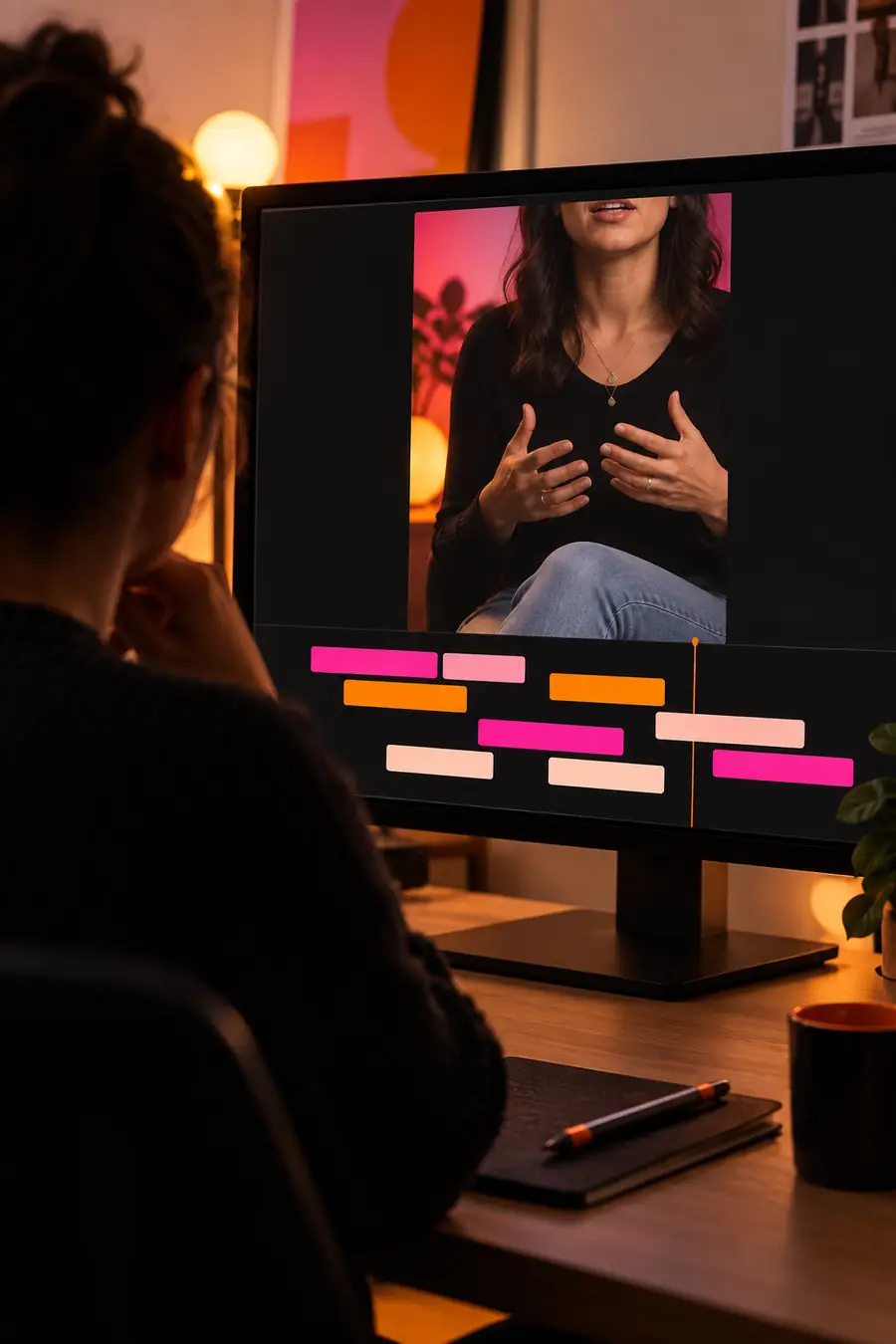

Illustrative workflow views, not a guaranteed before-and-after result. Compare the final text with the audio and the actual frames of your own clip.
The best caption pass often depends on work done elsewhere in the video. Match the next task to the problem you see in your preview.
A vertical clip needs tighter cuts before its spoken lines are reviewed. Moving the edit first keeps text from following moments that will be removed.
For a focused pass on the footage, use kapwing video editor before checking text timing.
kapwing video editorA recorded lesson needs to be delivered in a different video format after the words have been checked. Readability still needs a final check on the converted file.
Use kapwing convert video to explore the format step, then inspect the delivered version.
kapwing convert videoA new promotional clip is still being drafted, so there is no final dialogue to transcribe. Writing text against a temporary cut would create avoidable rework.
Explore kapwing video generator for the initial visual concept, then caption the finished spoken edit.
kapwing video generatorOpen a video workflow, add the spoken text, and check it against the original audio. Kapwing is most useful here when you treat its first pass as something to edit: verify the words, watch the timing, and preview the result at the size your audience will see.
Kapwing offers video editing tools for placing spoken text on screen. The practical workflow is to add or generate the text, correct it against the audio, and preview its timing before sharing.
Do not assume any automatically produced transcript is exact. Noise, overlapping speakers, and names are common reasons to listen again and edit individual lines.
Reviewing and correcting the text is an important part of caption editing. If a phrase is misheard, compare it with the source audio and revise the words before producing the final video.
A desktop preview can hide problems with small text, long lines, and busy backgrounds. Preview the video at phone size and move or shorten text that competes with important visuals.
Finish the main cuts first whenever possible. Changing the sequence afterward can shift the relationship between a spoken line and the text that accompanies it.