Import and find the story
Open Kapwing, add the source clip and watch it once without cutting. Mark the moment that shows the result, then identify the shortest opening needed to explain it.
Browser editing
The kapwing video editor is a place to turn loose footage into a focused video. Before opening Kapwing, decide what the finished clip needs to say, gather the source files and write down any text you want on screen.

A little preparation makes timeline work easier: keep the original footage, draft your on-screen wording and choose the shape of the final frame before you begin.
Kapwing can help assemble a clearer cut, but an editor cannot recover information the recording never captured. Check these limits before investing time in fine adjustments.
A cut can remove a weak moment, but it cannot reveal an action that happened outside the frame.
WorkaroundRecord a replacement shot or cover the gap with a relevant still that you have permission to use.
Text can support dialogue, but it does not make a distorted original recording intelligible.
WorkaroundUse a cleaner voice recording or write concise explanatory text rather than guessing at unclear words.
An edit that looks right in the workspace can still have a clipped title, abrupt ending or unwanted silence.
WorkaroundWatch the exported file from beginning to end on the device where viewers will see it.
Here is a workable pass for a short product demonstration, from unedited recording to a file ready for review.
Open Kapwing, add the source clip and watch it once without cutting. Mark the moment that shows the result, then identify the shortest opening needed to explain it.
Trim the waiting at the start and end, split around mistakes and place the useful moments in order. Add a brief opening title; keep important action visible instead of covering it with text.
Play the edit with sound on, then check it once with sound off. Fix hard-to-read text or distracting volume changes, export the video and review the resulting file before sharing.
Think of each editing choice as a trade-off between clarity and effort. For a short clip, the first pass usually needs fewer changes than you expect.
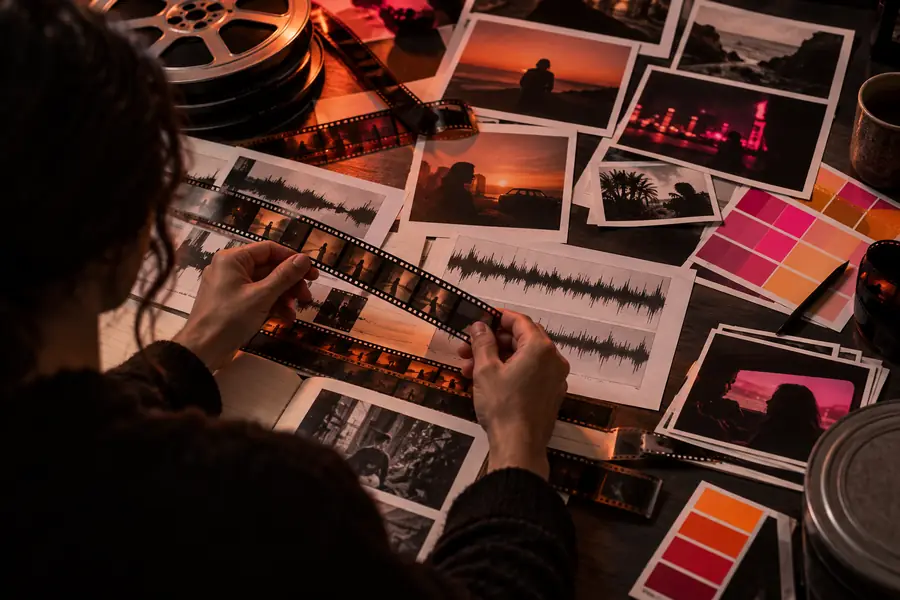

These are illustrative editing views, not verified before-and-after frames from the same video. Keep a long take when context matters; trim it when the audience needs the main point quickly. Add titles for orientation, not to repeat everything the picture already shows.
The best next adjustment depends on what is holding the clip back. These common scenarios help you decide whether to stay on the timeline or prepare another part of the video first.
A screen recording explains the steps well, but viewers may watch without sound.
Cut pauses first, then use captions to preserve the instructions when audio is muted.
kapwing captionsTwo good answers are surrounded by long pauses and uneven background sound.
Choose the answers on the timeline, then review the voice track before adding music.
kapwing audio editorThe clip is edited, but its output may not suit the intended destination.
Confirm the frame and delivery format before exporting another version.
kapwing convert videoThere is a script and a concept, but no usable footage to place on the timeline.
Explore a generated starting clip, then review and edit it for accuracy.
kapwing video generatorTrying to fix every detail at once makes it harder to spot a weak story. Start with the opening, the essential sequence and the ending; then watch the result before polishing text or sound. Kapwing works best when you have a clear source and a specific goal for the edit.
You can use Kapwing to organize clips into a video, trim unwanted moments, add on-screen text and prepare an export. The useful starting point is a clear goal: decide what viewers should understand by the end, then make each cut support it.
Gather your footage and any text you need, then open an editing workspace and add the source clip. Watch the whole clip before trimming so you do not cut away context that the finished story needs.
Make your main cuts first. Once the spoken sequence is stable, add or review captions against the edited audio so their timing matches the final version.
Check the opening frame, title placement, sound levels and final seconds. After export, play the file itself rather than relying only on the workspace preview; that is the version your audience will receive.